
Scenario
A user’s email signature appears correctly in Outlook for Web and Outlook Desktop. However, when accessing email through Outlook Mobile (iOS or Android), the signature does not display.
The mobile device is managed through Microsoft Intune, and a policy configuration may be blocking the Outlook Add-in from functioning as expected.
Resolution
- Sign in to the Microsoft Intune admin center (Microsoft Endpoint Manager admin center).
- From the menu sidebar, select Apps. Select Manage apps, then select Configuration.
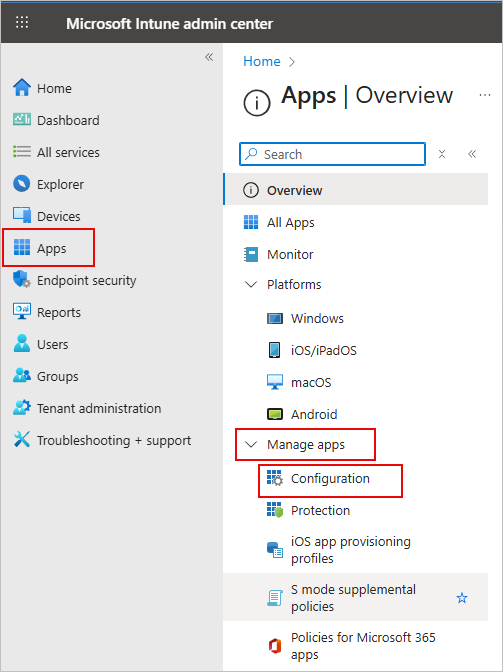
From the menu sidebar, select Apps. Select Manage apps, then select Configuration.
- From the list of available configuration policies, locate and click on the name of the policy you want to review or edit.
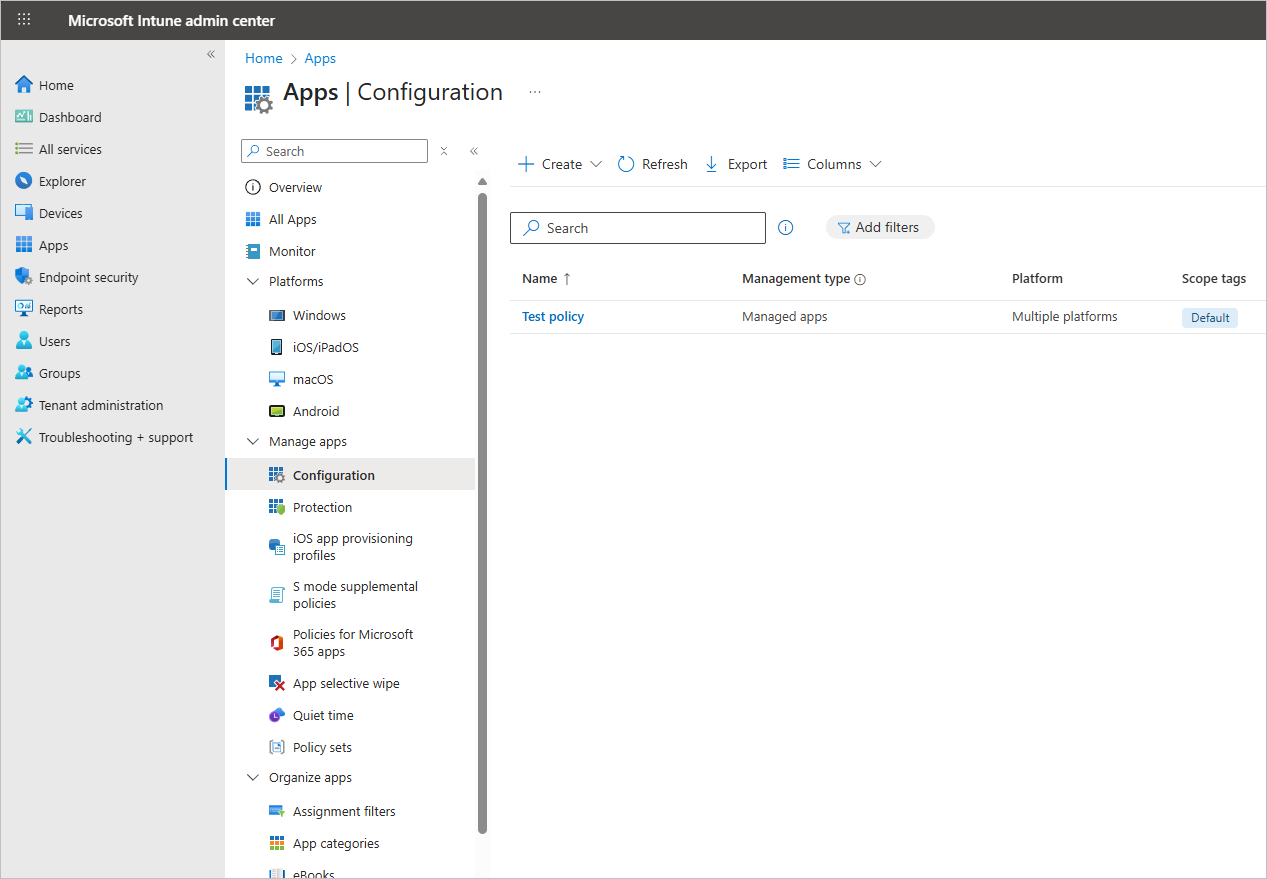
Locate and click on the name of the policy you want to review or edit.
The properties window is displayed.
- Navigate to the Settings section. Locate Outlook configuration settings and find the Default App Signature option.
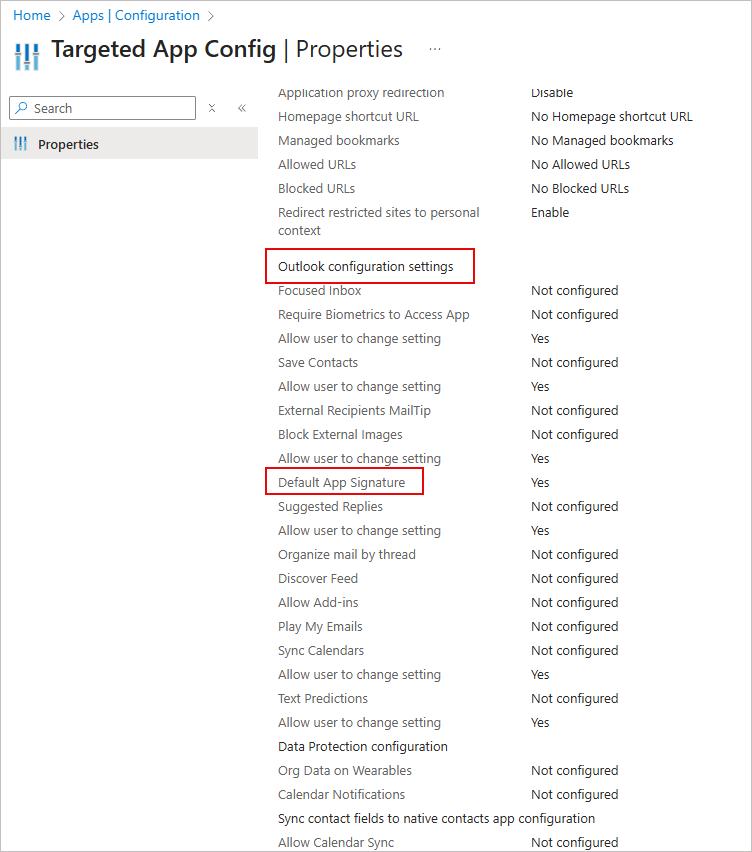 Under Settings, locate Outlook configuration settings and find the Default App Signature option.
- Check the current value of this setting. If it is set to Yes or No, return to the Settings section and select Edit.
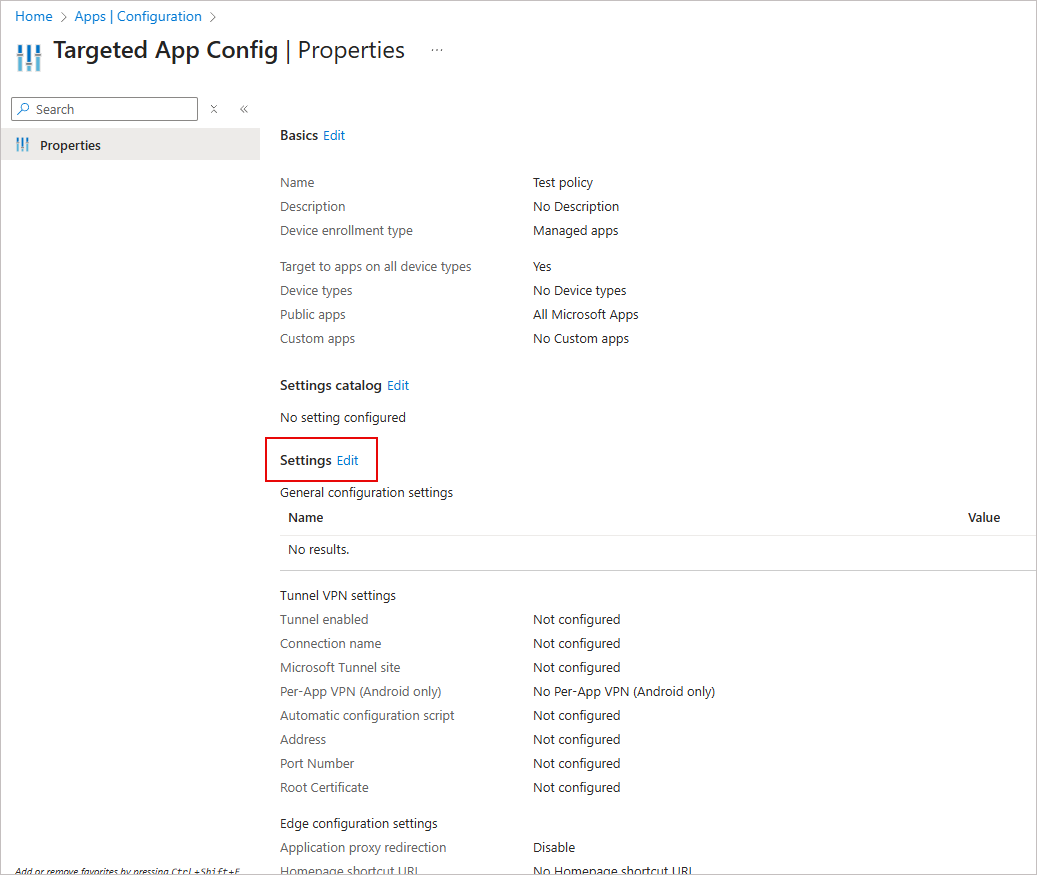
Select Edit.
- Expand the Outlook configuration settings section.
- Locate the Default App Signature option.
- From the drop-down menu, select Not configured.
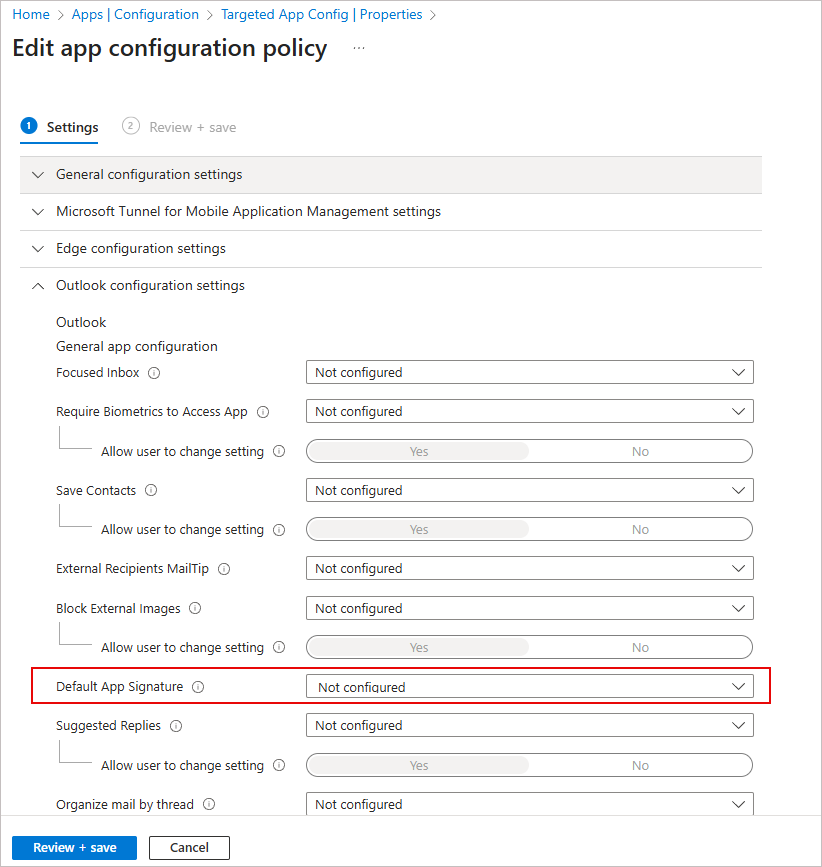
From the Default App Signature drop-down list, select Not configured.
- Select Review + save. Review the updated policy settings carefully to ensure the configuration is correct.
- Select Save to apply the changes.