
Scenario
Emails are not syncing properly between Microsoft Outlook and the Exchange server, leading to missing messages, delayed updates, or inconsistencies across devices. In some cases, entire folders may fail to synchronize, resulting in mismatched folder structures and incorrect unread message counts.
Reason
Synchronization issues can occur due to incorrect configuration settings, connectivity problems, or corrupted data files.
Resolution
To fix synchronization issues between Outlook and Exchange, such as missing emails or differences between devices, follow these steps:
Ensure all devices are connected to the Internet
Make sure each device you use to check your Outlook email is connected to the internet.
You can test this by opening a web browser and visiting any website. If it does not load, check your Wi-Fi or Ethernet connection, restart your modem or router, or contact your internet provider for help.
You can test this by opening a web browser and visiting any website. If it does not load, check your Wi-Fi or Ethernet connection, restart your modem or router, or contact your internet provider for help.
Verify account settings are consistent across devices
To verify if the account settings are consistent across all devices:
- Open Outlook. These steps apply to the Classic Outlook version.
- From the menu bar, select File, then select Account Settings.
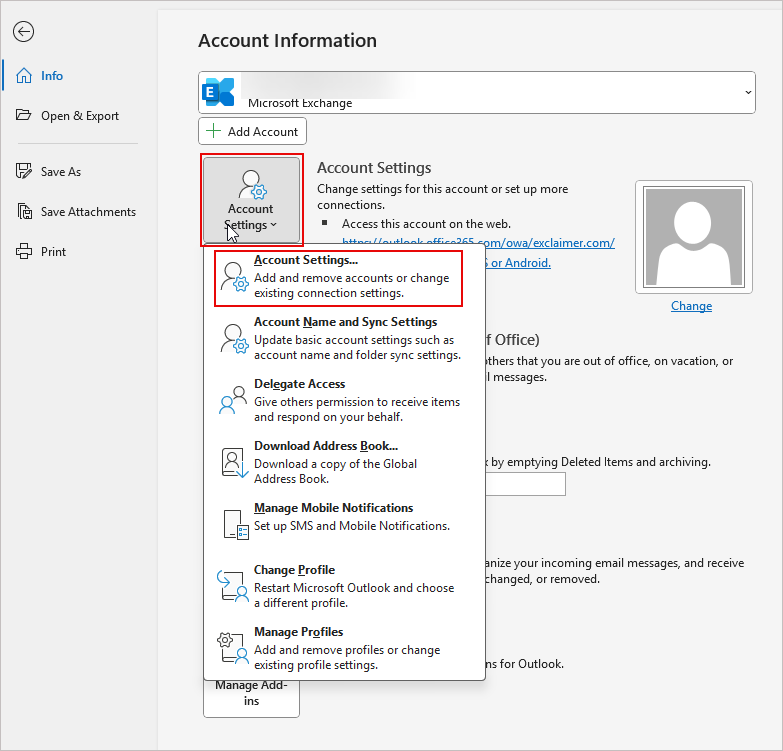
From the menu bar, select File, then select Account Settings. - Select your Exchange account, then select Change to view the account settings.
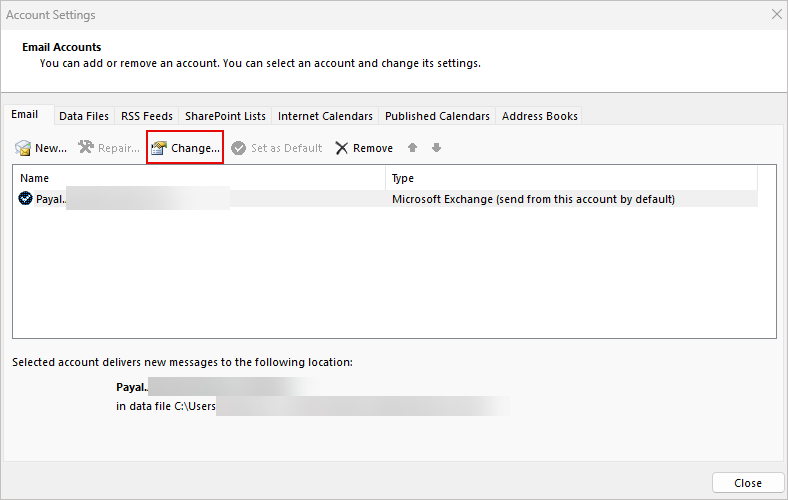
Select your Exchange account, then select Change.
Make sure the incoming and outgoing mail server settings are the same on all your devices.
Check that your username and email address are correct.
For mobile devices, go to the mail settings in your phone’s Settings app and confirm they match your desktop Outlook setup.
Use the Repair option in Account Settings
To repair the account settings:
- Open Outlook. These steps apply to the Classic Outlook version.
- From the menu bar, select File, then select Account Settings. Select Account Settings.
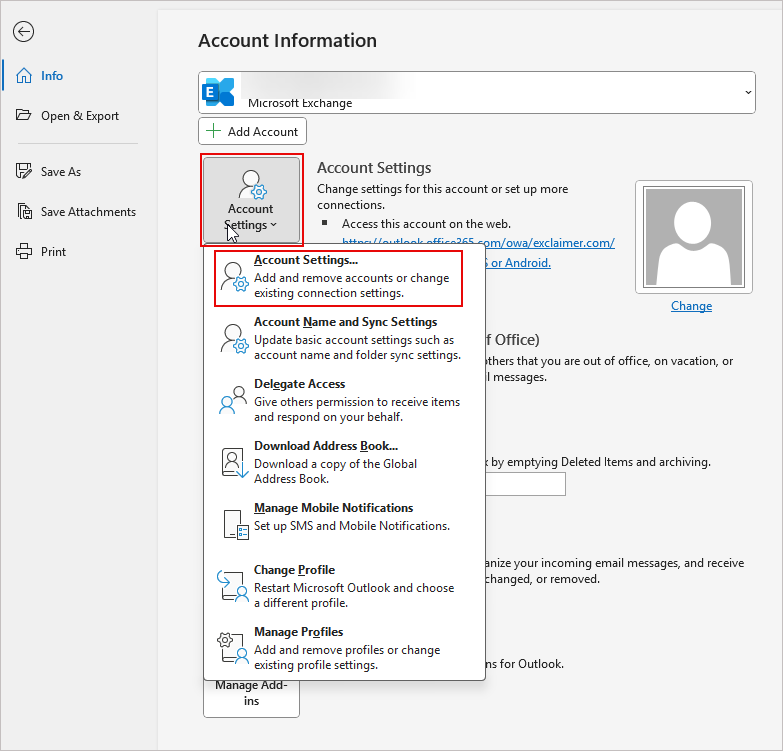
Select Account Settings. - Select your Exchange account, then select Repair.
- Follow the prompts in the Repair wizard. This will automatically detect and fix any issues that connect to your account settings.
Clear Offline Items and Re-sync the Mailbox
To clear offline items and force a re-synchronization of your mailbox:
- Open Outlook. These steps apply to the Classic Outlook version.
- Switch to the Folder view.
- Right-click the folder that is not synchronizing correctly and select Properties.
- Select the General tab. Select the Clear Offline items button. Select OK.
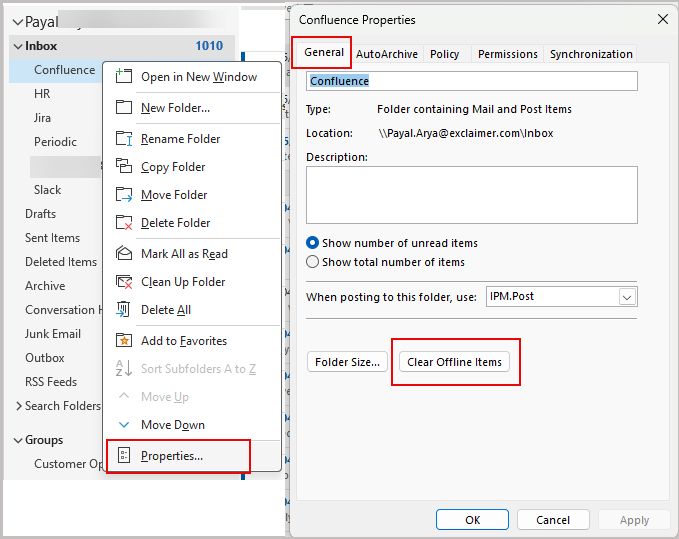
Within the General tab, select the Clear Offline items button. - On the menu ribbon, select the Send/Receive tab, then select Send/Receive All folders to resync your mailbox.

Within the Send/Receive tab, select Send/Receive All folders. - If the issue persists across multiple folders, on the menu ribbon, select the Send/Receive tab, select Send/Receive Groups, then select Download Address Book.
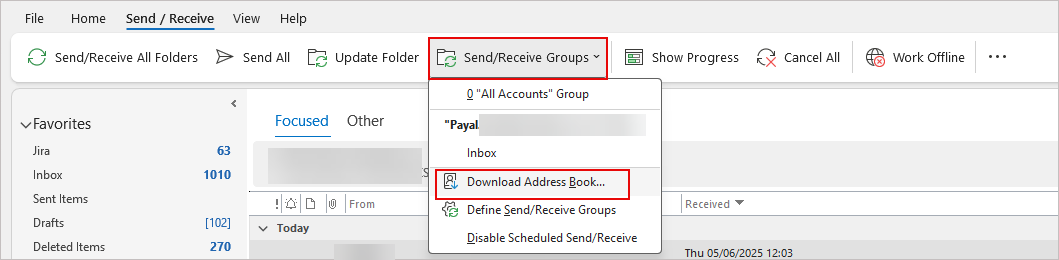
Within the Send/Receive tab, select Send/Receive Groups, then select Download Address Book. - Ensure that the Download changes since last Send/Receive checkbox is selected. This will refresh your local copy of the mailbox.
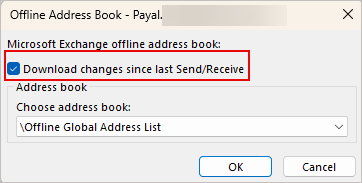
Select the Download changes since last Send/Receive option.