
Description
This option allows an Exclaimer Administrator to re-authenticate Client-Side signatures so that the users have the correct permissions to sign-in to Exclaimer when using the Client-Side agents.
How to access it
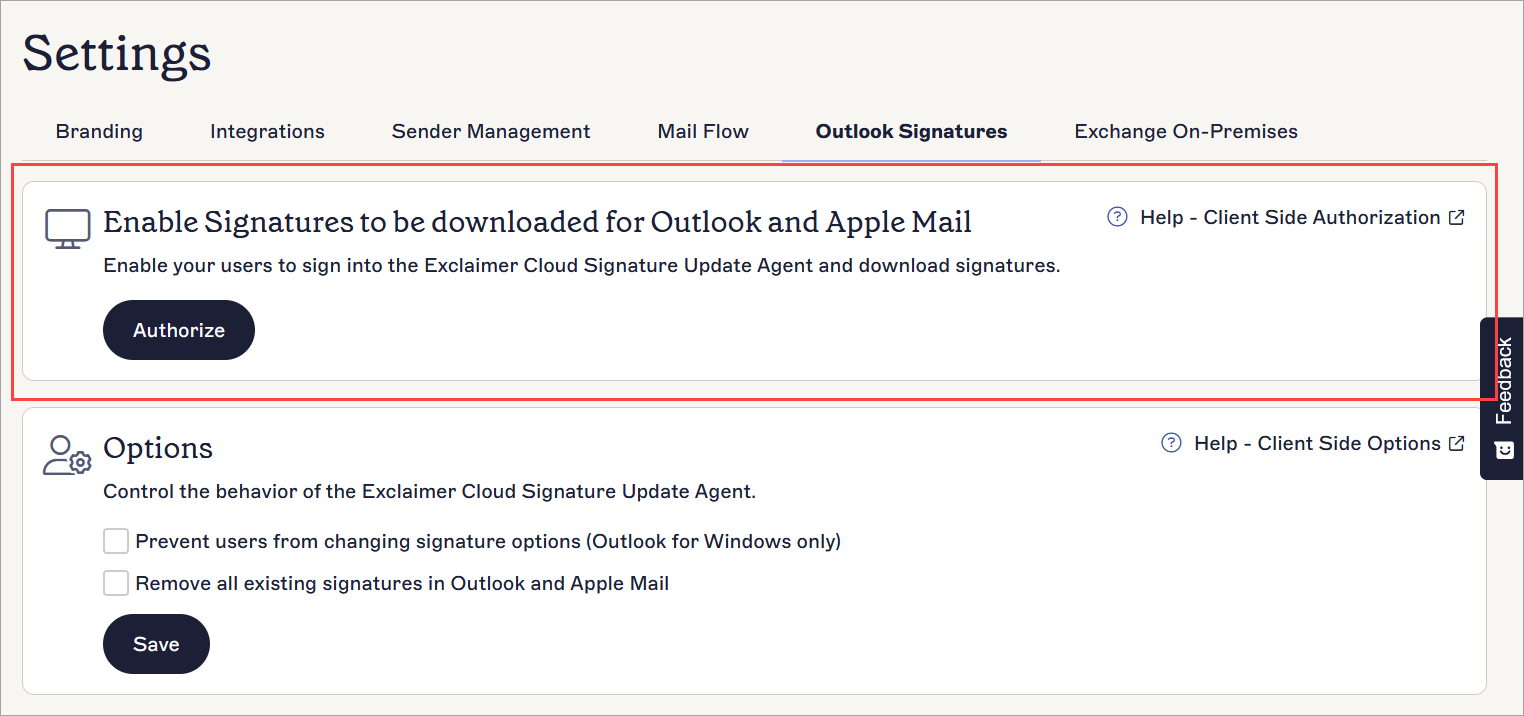
To access the 'Enable Signatures to be downloaded for Outlook' option:
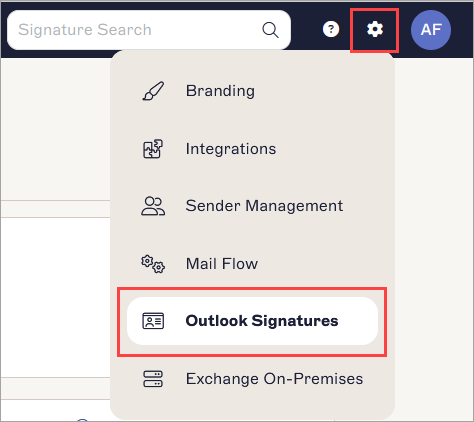
- From the header bar, select the cogwheel icon to open the Settings menu, then select Outlook Signatures.
 NOTES on Outlook Signatures:
- It is only available for Microsoft 365 users.
- It is visible only when you have configured Exclaimer - Signatures for Microsoft 365 for Client-Side signatures.
- It is not visible to users with the Editor role. For more information, see User Management. - Locate the Enable Signatures to be downloaded for Outlook section.
Authorizing Client-Side signatures
To initiate Client-Side authorization:
- Select Authorize.
- You are prompted to sign in to Microsoft 365 as a Global Administrator.
- Once signed in, you are prompted to accept a permissions request with a list of permissions that Exclaimer will have when the Signatures for Outlook feature is enabled.
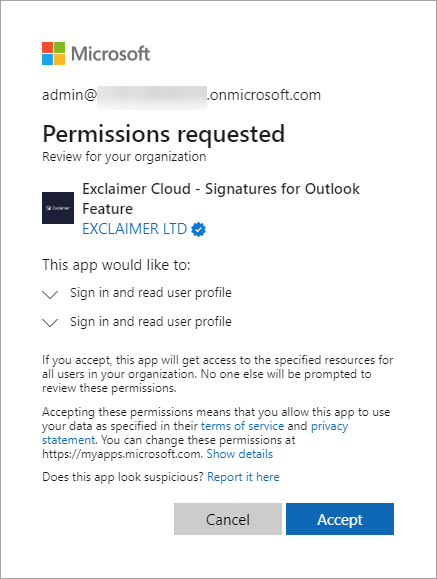
- Select Accept.
The Authorization Successful message is displayed.
After the authorization is complete, users can sign in to the Client-Side Agents to receive their signatures.