
Scenario
After configuring Exclaimer, you find that Google Drive share notifications and Calendar reminder emails are not being received.
Resolution
To ensure that these messages are delivered correctly, it is necessary to stop them from getting routed to Exclaimer. This requires setting up rules in the Google admin console to exclude messages from the sender domains.
To do this, follow the steps below:
REQUIRED!
You need Google Workspace Super Admin credentials to complete this process.
You need Google Workspace Super Admin credentials to complete this process.
- Log in to the Google Admin console as a super admin.
- Select Apps, then Google Workspace, then Gmail.
- Select Compliance, then select Content compliance.
- Select Edit on the Send to Exclaimer rule.
This opens the Edit setting window.
-
In point 2, from the drop-down list, select If ALL of the following match the message:
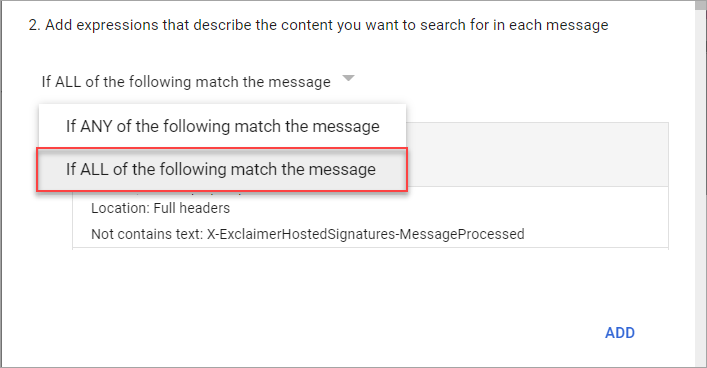
Select If ALL of the following match the message.WARNING! You MUST select the correct option from the drop-down list. Selecting the incorrect option will result in mail flow issues. - Select ADD to add a new expression.
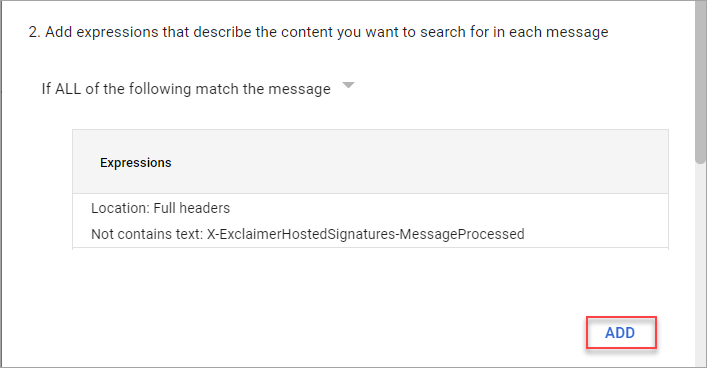
Select ADD.
This opens the Add setting window.
- From the drop-down menu, select Advanced content match.
- From the Location drop-down list, select Full headers.
- From the Match type drop-down list, select Not contains text.
-
Under Content, enter
calendar-notification@google.com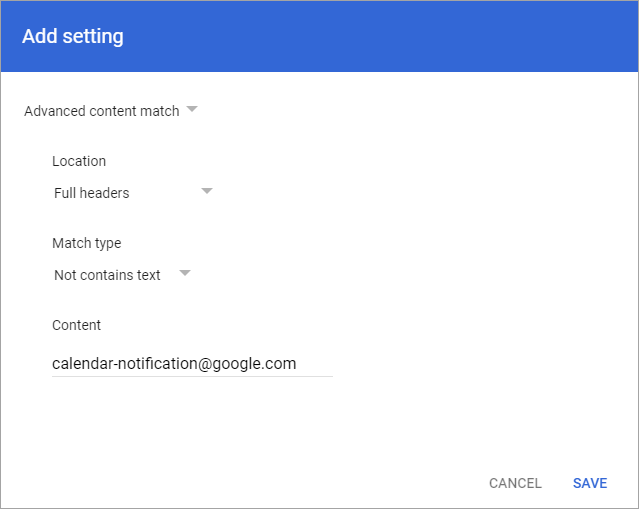
The Add setting window, populated with the rule content.
- Select SAVE. This adds a rule to exclude all messages from the calendar notifications sender from being sent to Exclaimer.
- Select ADD to add another new expression.
- From the drop-down menu, select Advanced content match.
- From the Location drop-down menu, select Envelope sender.
- From the Match type drop-down menu, select Not contains text.
-
Under Content, enter
google.com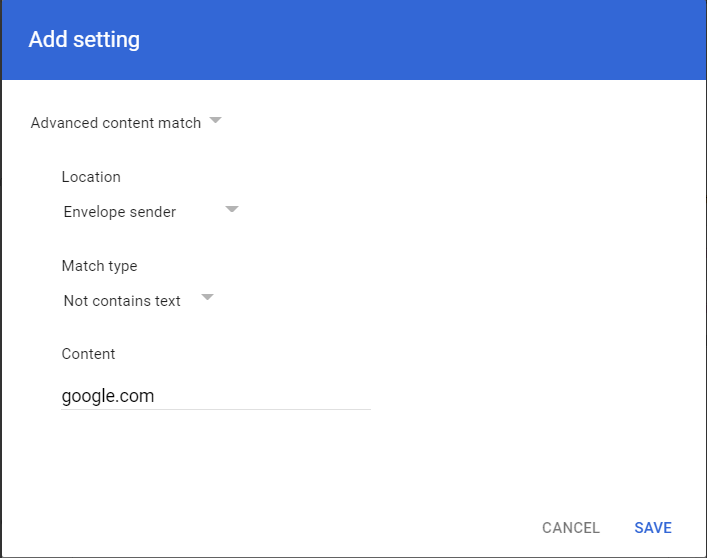
The Add setting window, populated with the rule content.
- Select SAVE. This adds a rule to exclude all messages from other addresses ending in google.com, incorporating all other reminder and drive addresses such as drive-shares-dm-noreply@google.com.