
Description
Once you or your admin set your Meeting Branding theme's assets in our Brand Kits feature, you must install Zoom for it to appear in your meetings. Meeting Branding is then automatically applied to your users' Zoom meetings, but we do recommend changing some settings in Zoom to improve your Meeting Branding experience.
Installing Meeting Branding
Exclaimer integrates the Exclaimer Zoom app with the Zoom Desktop client.
You must have the Zoom desktop client and Zoom Owner or Admin credentials.
To use Meeting Branding in your Zoom video feed, you must install the Meeting Branding by Exclaimer Zoom app. We recommend that your users enable the setting Auto-open in meetings to automatically run Meeting Branding when a Zoom call starts.
You can also use an Icon and/or a Meeting Background in your Meeting Branding overlay. These assets are pulled from the Brand Kits feature.
To install the Meeting Branding Zoom app:
- From the Meeting Branding screen, select the How to apply themes tab.
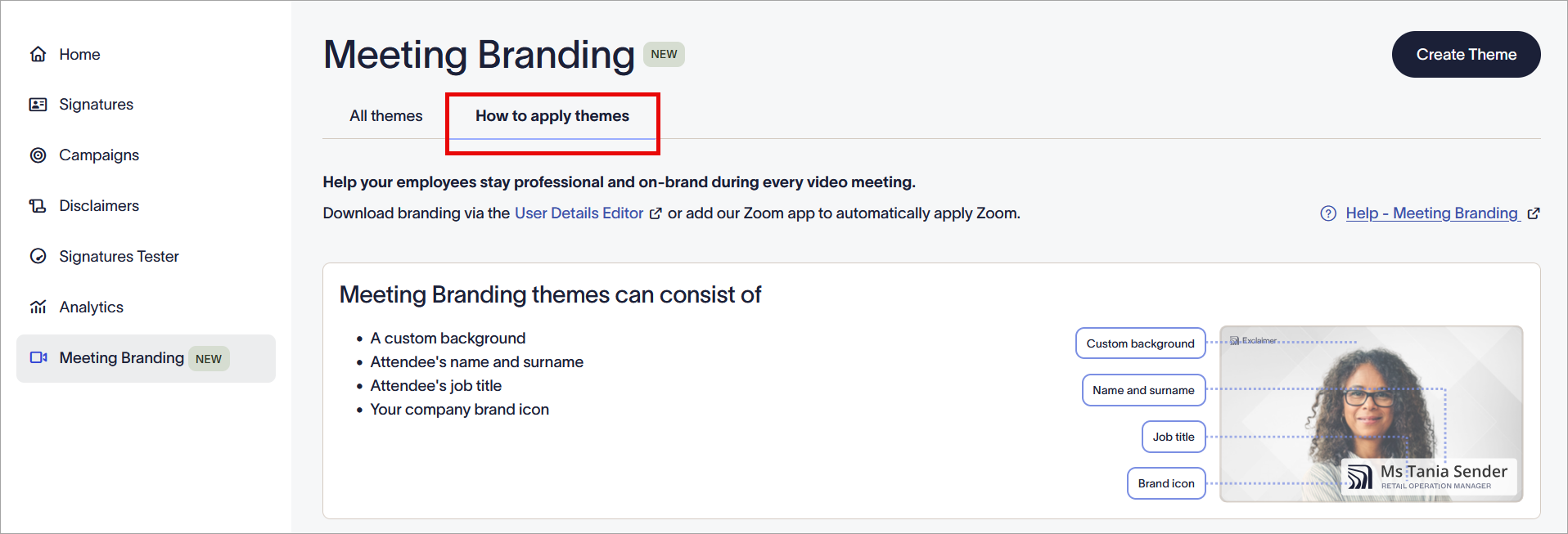
Open the How to apply themes tab.
- In the Apply Meeting Branding section, under Automatically apply in Zoom, select Go to Zoom Marketplace.
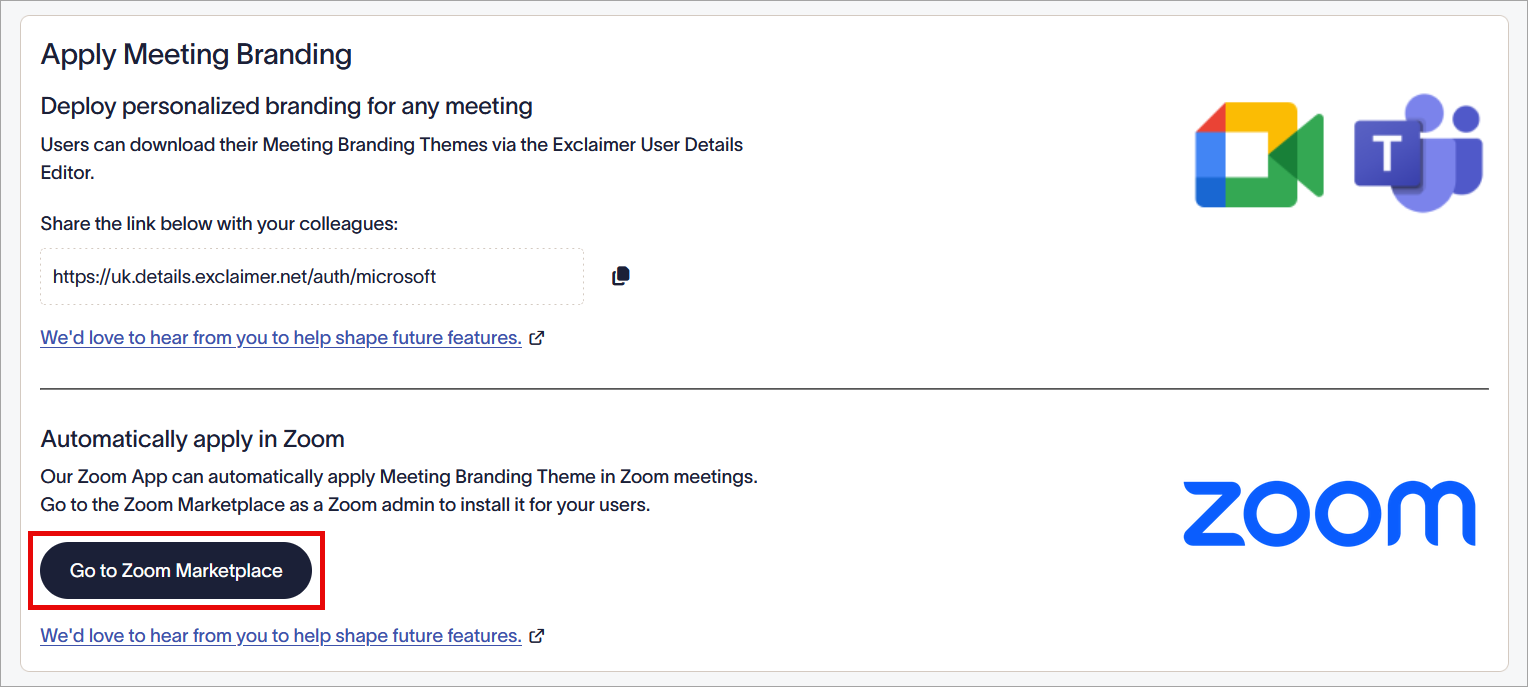
Select Go to Zoom Marketplace.
- As a Zoom Admin or Owner, log into the Zoom App Marketplace.
- Locate the Meeting Branding by Exclaimer Zoom app and select Add.
- On the app authorization screen, select either:
All users to add the app for all users within the Zoom account.
OR
Users & groups to add the app for selected users or groups within the Zoom account. Then, in the Add users & groups field, enter the user(s) or group name(s).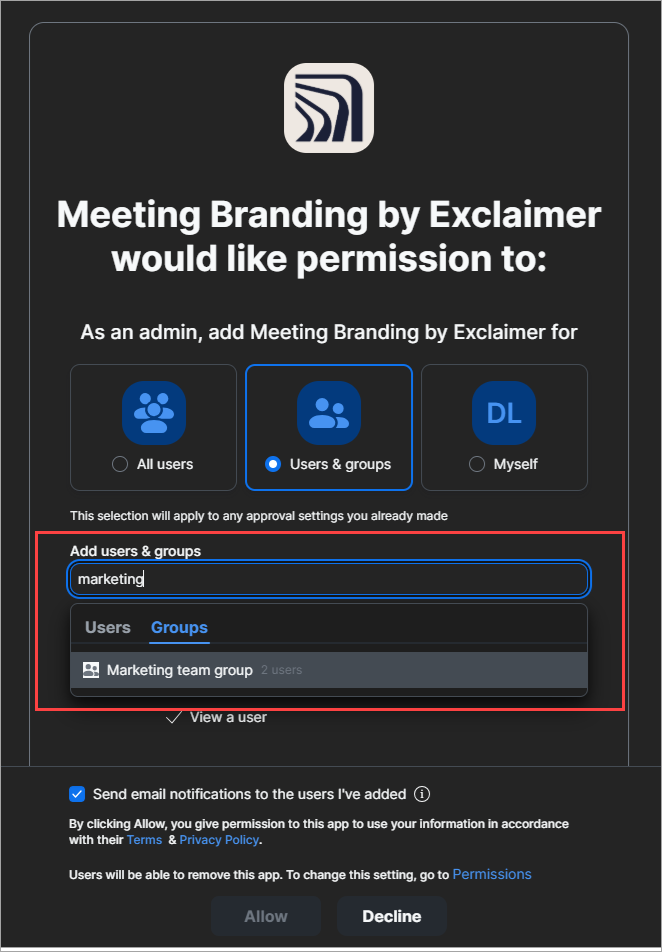
If selecting Users & groups, enter the user or group names from the Zoom account.
- [Optional] Select the Send email notifications to the users I've added checkbox to send an email alert to each user informing them that this app has been added to their Zoom account.
- Select Allow.
To remove Zoom Meeting Branding, you must uninstall the Exclaimer Meeting Branding app. This removes any Meeting Branding from your user's Zoom accounts.
To uninstall the app:
- As a Zoom Admin or Owner, log into the Zoom App Marketplace.
- Locate the Meeting Branding by Exclaimer Zoom app in the Added Apps section.
- Select the app, then select Remove.
Adjusting Zoom Settings
Your Branding is already available in your Zoom desktop app after installation. We recommend adjusting your settings to auto-apply the Branding in meetings, maximise quality, and check mirror mode.
Video Guide
To apply Meeting Branding on Zoom:
-
Launch the Zoom desktop client. Open the Apps tab,
then
select My apps.
-
Locate the Meeting Branding app in the My Apps list.
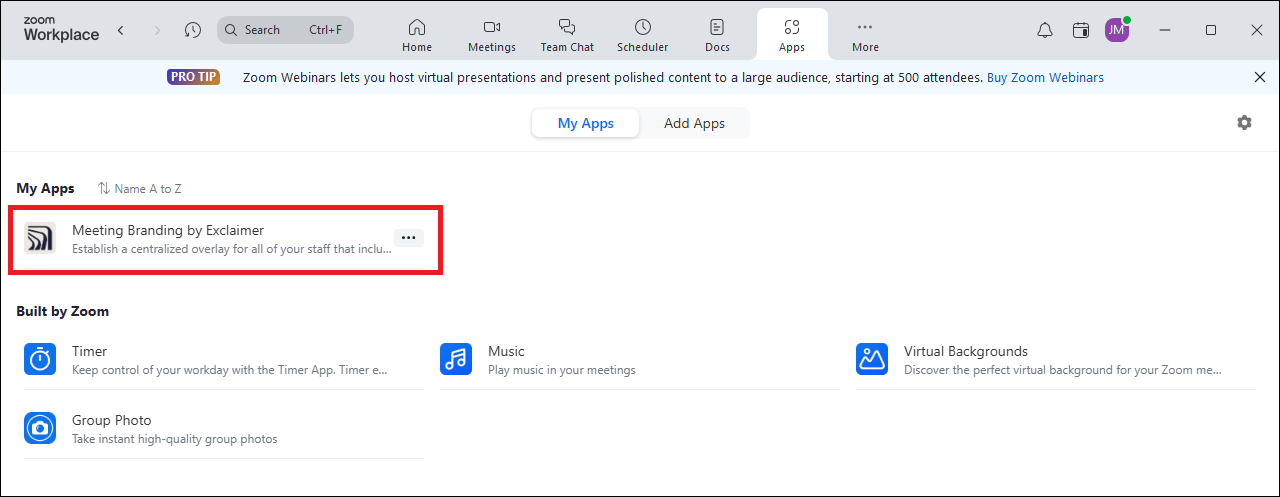
Locate the Meeting Branding by Exclaimer app.
-
Open the ellipsis menu by selecting the three dots, then select Auto-open in meetings.
This automatically launches Meeting Branding by Exclaimer app when using Zoom, so your theme is always applied when in a meeting with your camera on.NOTE: Due to a limitation within Zoom, it is not possible for an Admin to configure the Meeting Branding app to automatically run in meetings for all users. Users must enable Auto-open individually.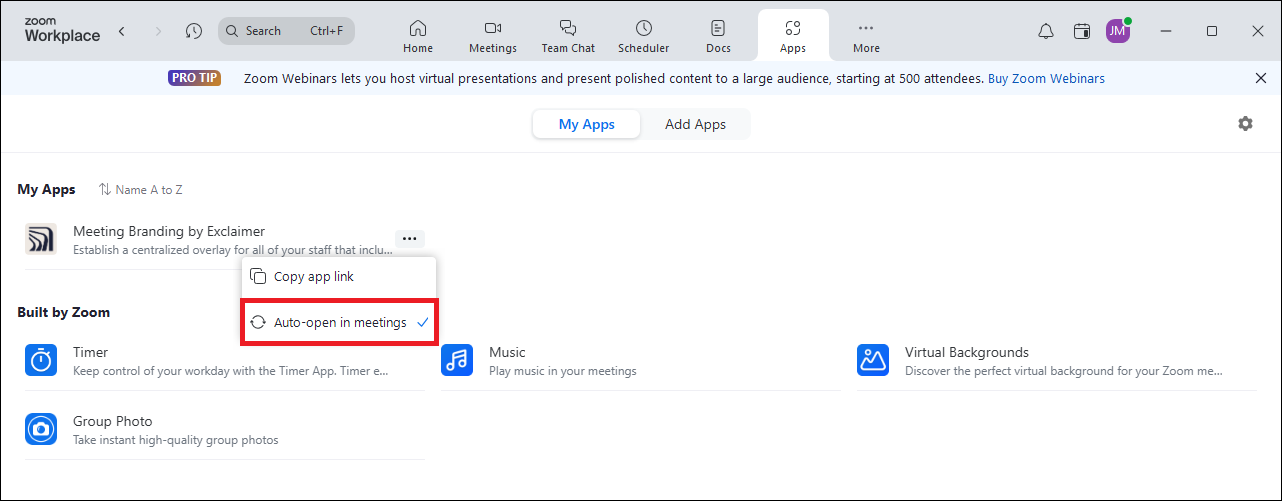
Select Auto-open in meetings.
-
Join a meeting to apply your Meeting Branding to your screen. If multiple themes have been created in Meeting Branding, you can choose which theme to apply to your call.
We recommend: Meeting Branding works best in Zoom calls of 8 participants or less to keep your overlay clear and sharp.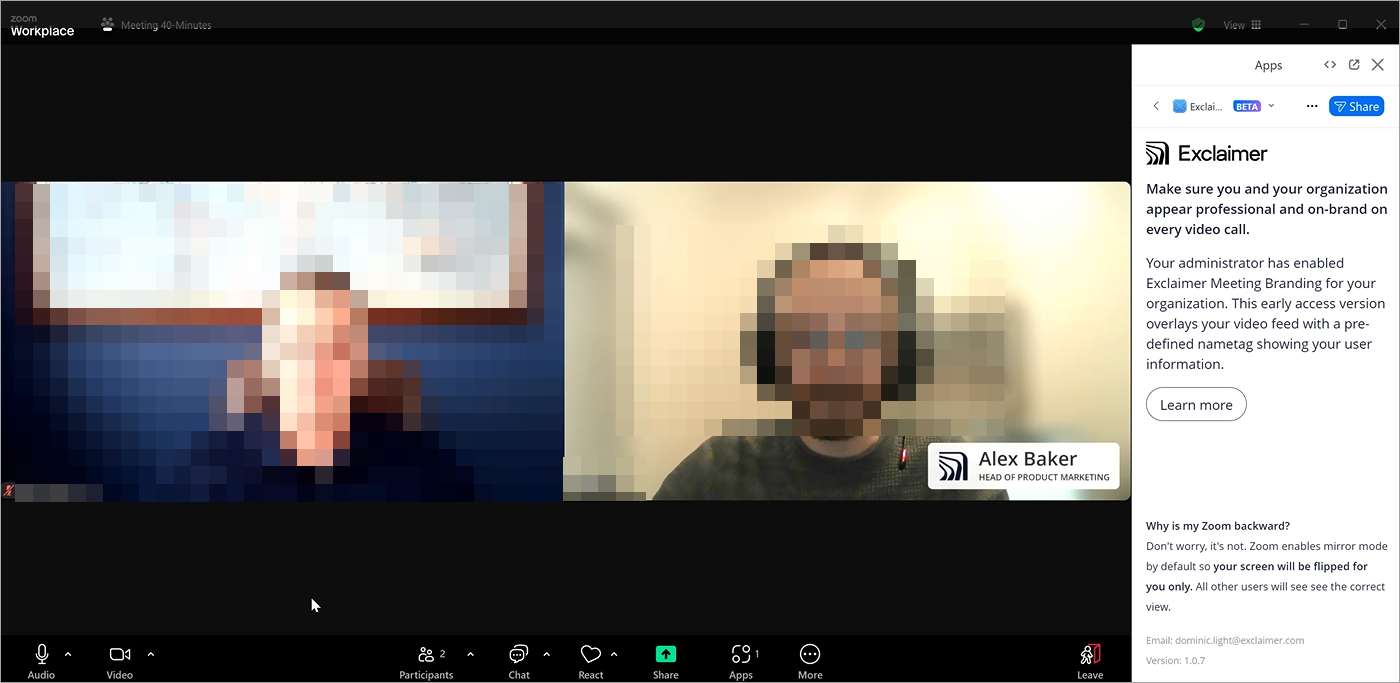
Example of a Zoom Video displaying the user name, job title and company logo.
-
Open Zoom Settings.
-
From the menu sidebar, select Video & effects.
-
Under Camera, switch the HD video toggle to on.
This
maximizes the quality of your overlay.
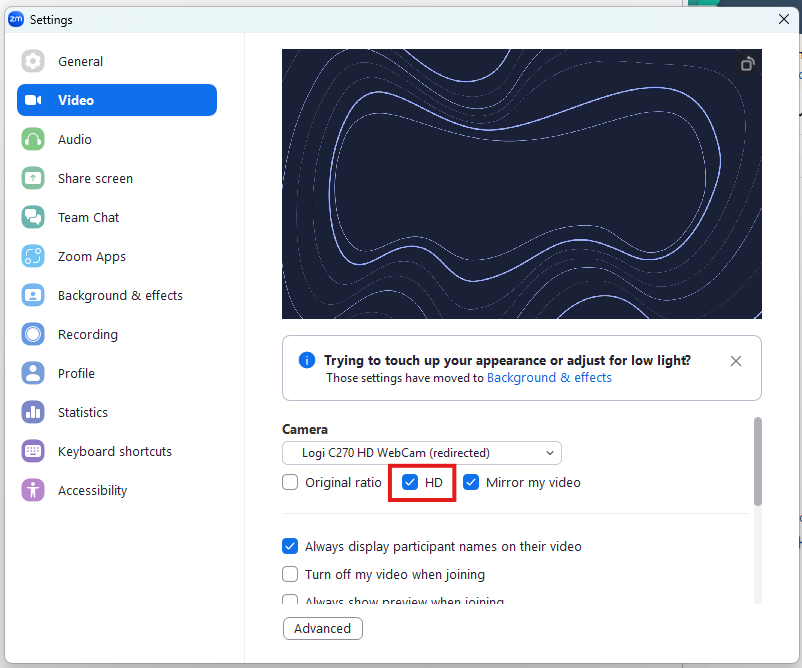
Select the HD video toggle.
-
[Optional] When using Meeting Branding in a meeting, deselect the
Mirror my video checkbox to disable this feature
locally
to see how your name tag appears to others on the call.
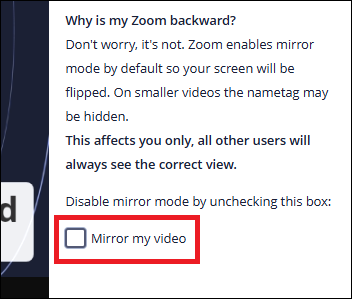
Deselect the mirror my mode option to disable the feature locally.