
Description
Authorizing allows Exclaimer to read user details from your Google Workspace directory and maintain a replica in an Exclaimer database. This data is used to populate the contact details in your signature and can be used to control which users get which signature.
How to access it
To access the Enable option:
- From the header bar, select the cogwheel icon to open the Settings menu, then select Sender Management.
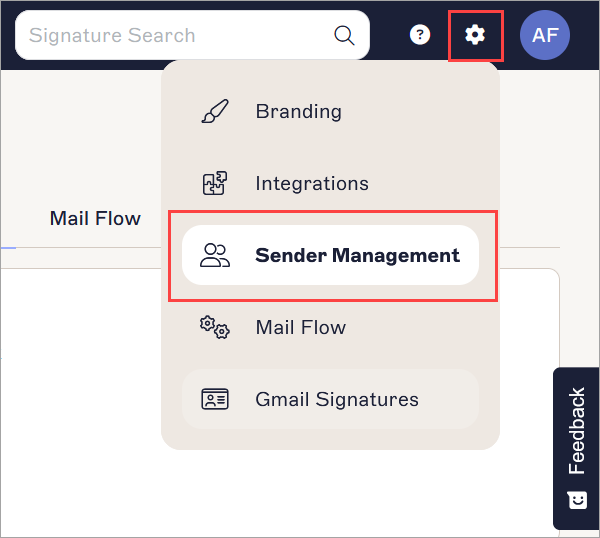
The Settings menu is found under the cogwheel icon.
- Under Enable Access to Google Workspace, locate the Install button.
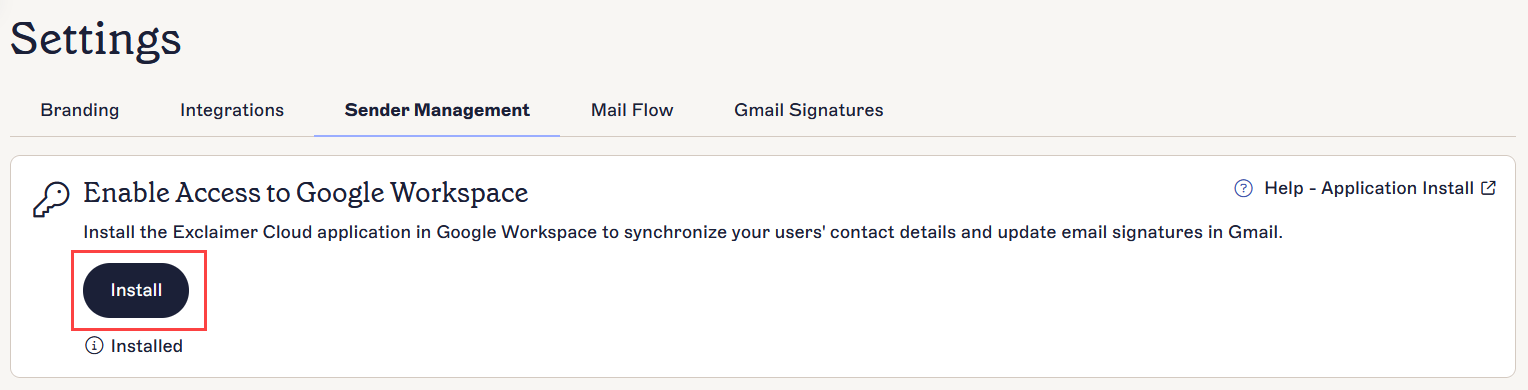
The Sender Management screen. The Install button is found in the Enable Access to Google Workspace section.
Enabling Access to Google Workspace
Use Google Workspace Super Admin credentials to configure the Exclaimer - Signatures for Google Workspace subscription. If you install the Google App with unlicensed Super Admin credentials, the Exclaimer portal will fail to complete the verification process.
Use an account licensed with a paid license. If you install the Google app with the 'free' license, the Exclaimer portal will fail to complete the process.
Ensure your Google Drive and Docs permissions are set to 'Enabled for Everyone', otherwise installation will fail.
To install Exclaimer in Google Workspace:
- Select Install.
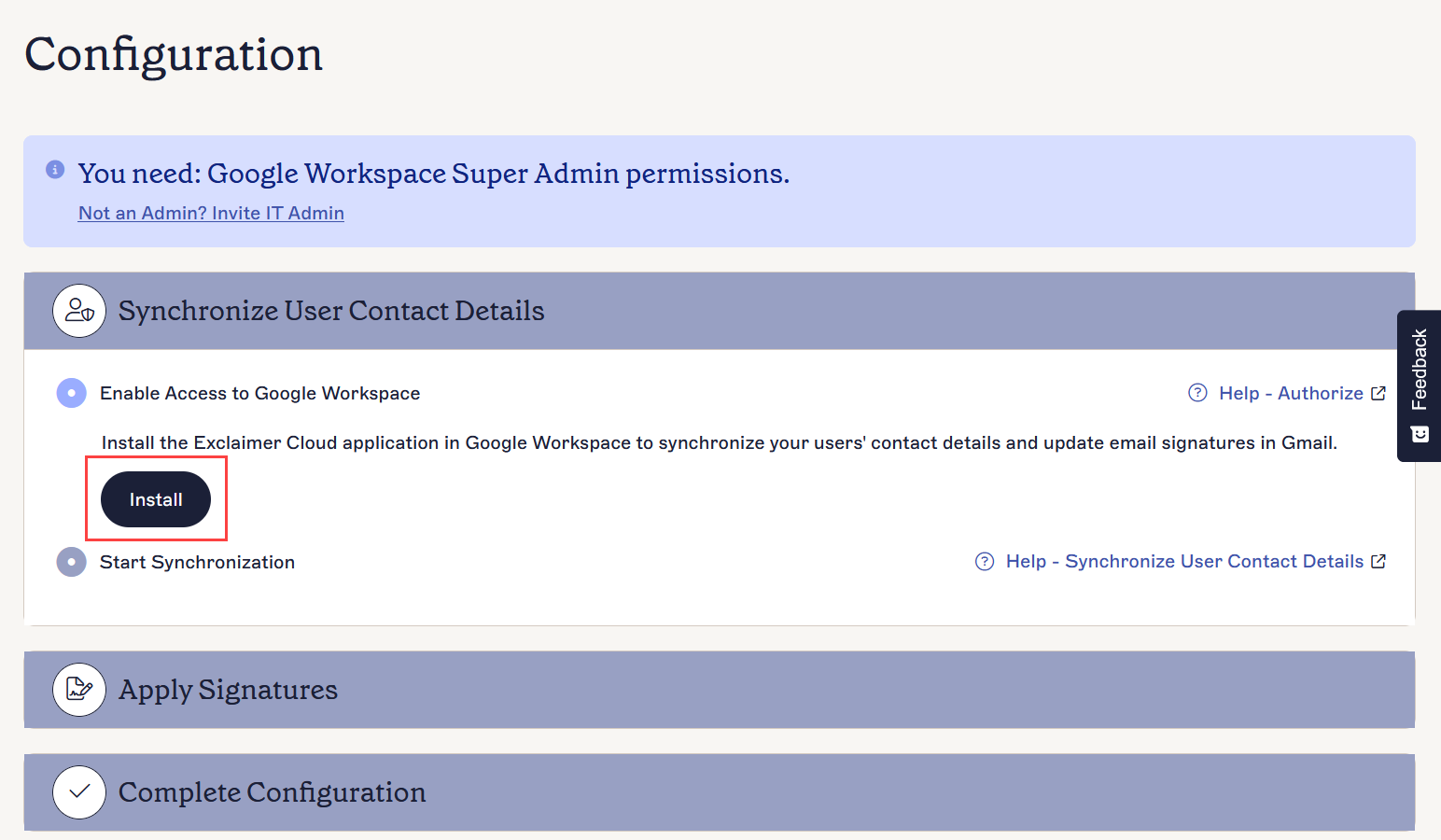
Select the Install button.
- In the Sign in with Google window, choose an account that has Google Workspace Super Admin permissions.
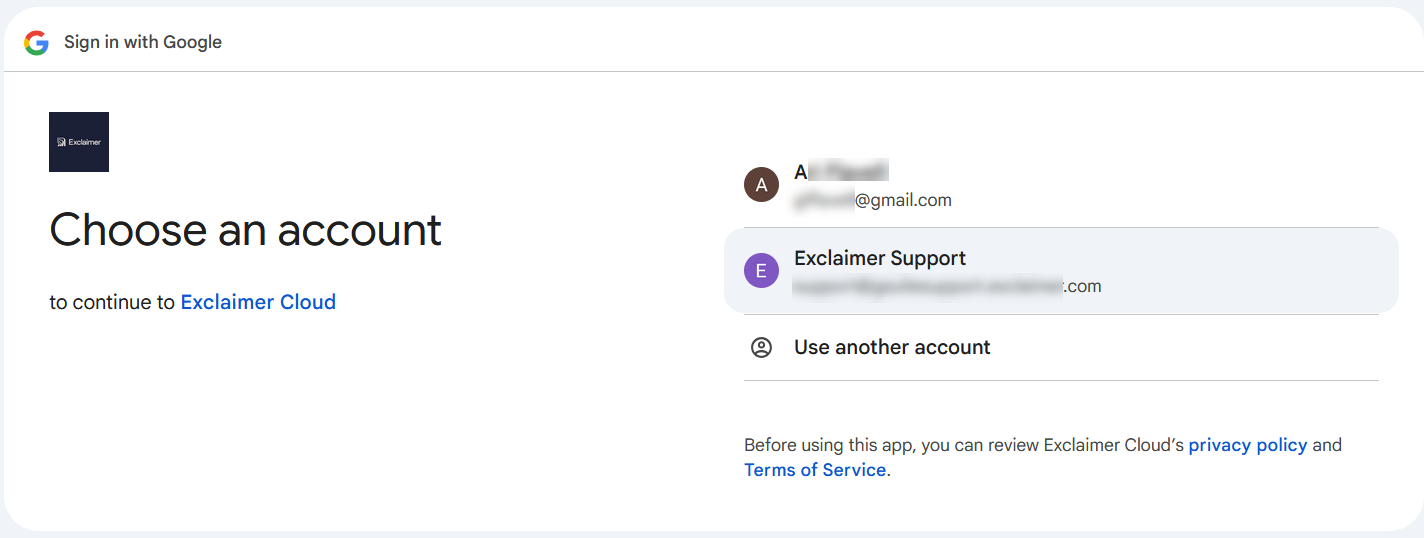
Choose your Super Admin account when signing in to Google.
- Select Continue to allow Google to connect with Exclaimer.
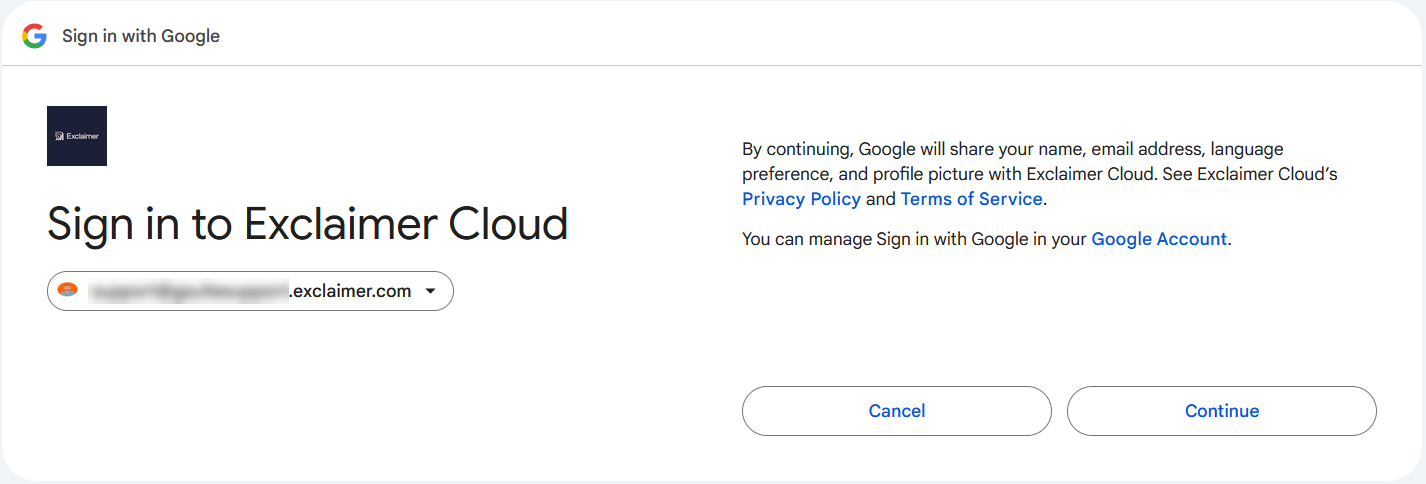
Select Continue.
- In the permissions prompt, select Allow to grant permission and verify the installation.
The wizard will check for any existing Exclaimer G Suite application installation.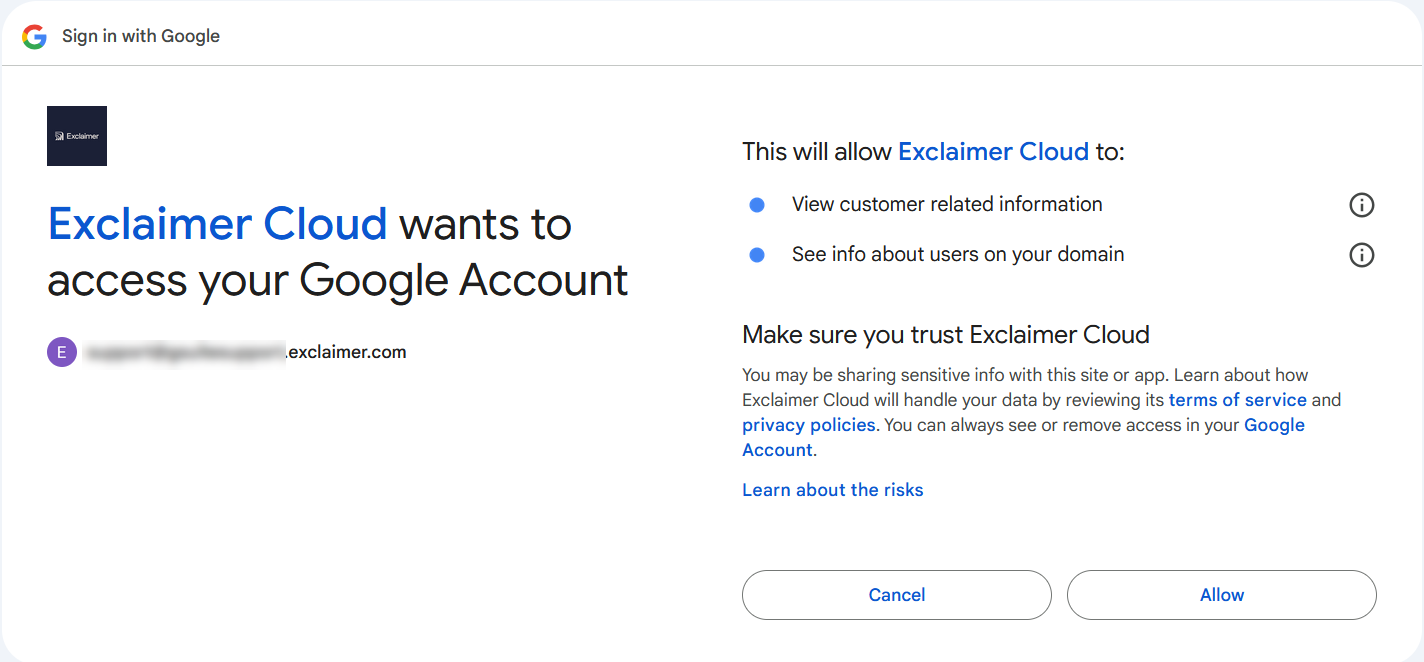
Select Allow.
-
If no existing installation exists, the Google Workspace Marketplace screen for Exclaimer G Suite is displayed. Select Admin install.
WARNING! It is only possible to install Exclaimer using Admin Install. Do not select Individual install.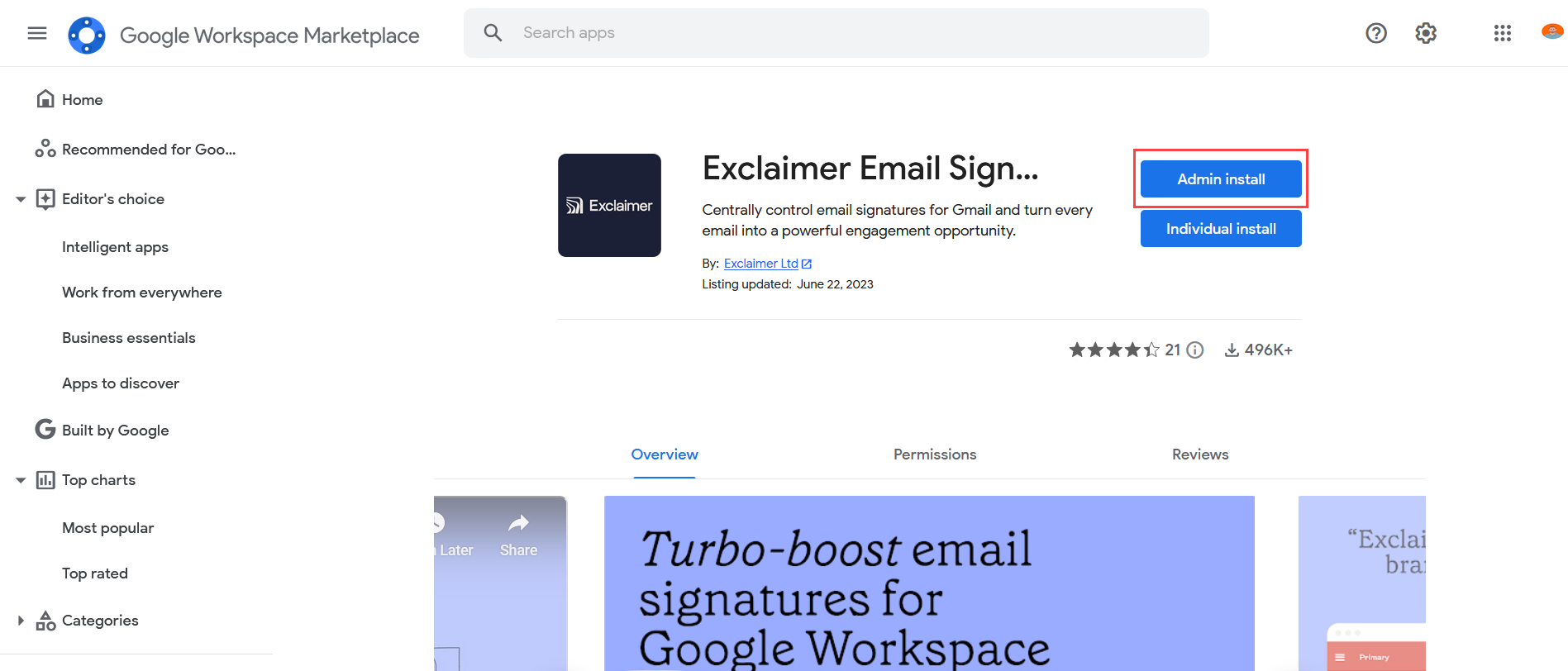
Select Admin install. Do NOT select Individual install.
-
In the Admin install window, select CONTINUE to accept the terms of service and proceed with installation.
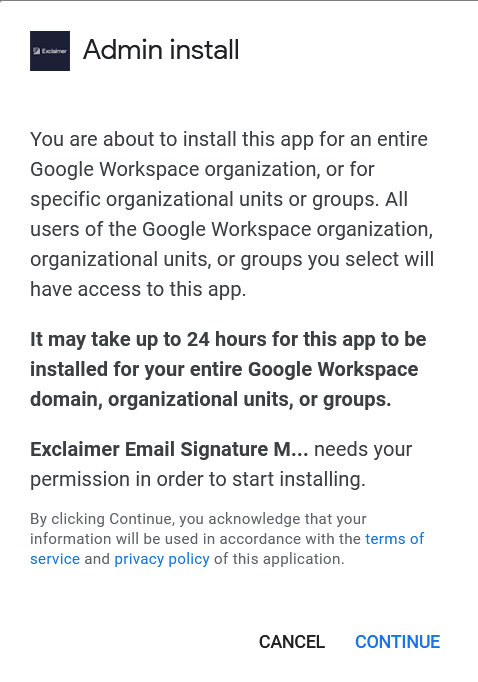
The Admin install window. Select CONTINUE.NOTE: It may take up to 24 hours for this app to be installed for your entire Google Workspace domain or organizational unit. - A list of access rights is displayed. This shows which aspects of your software are accessed by Exclaimer. Select the information icon (i) to view details of an access right.
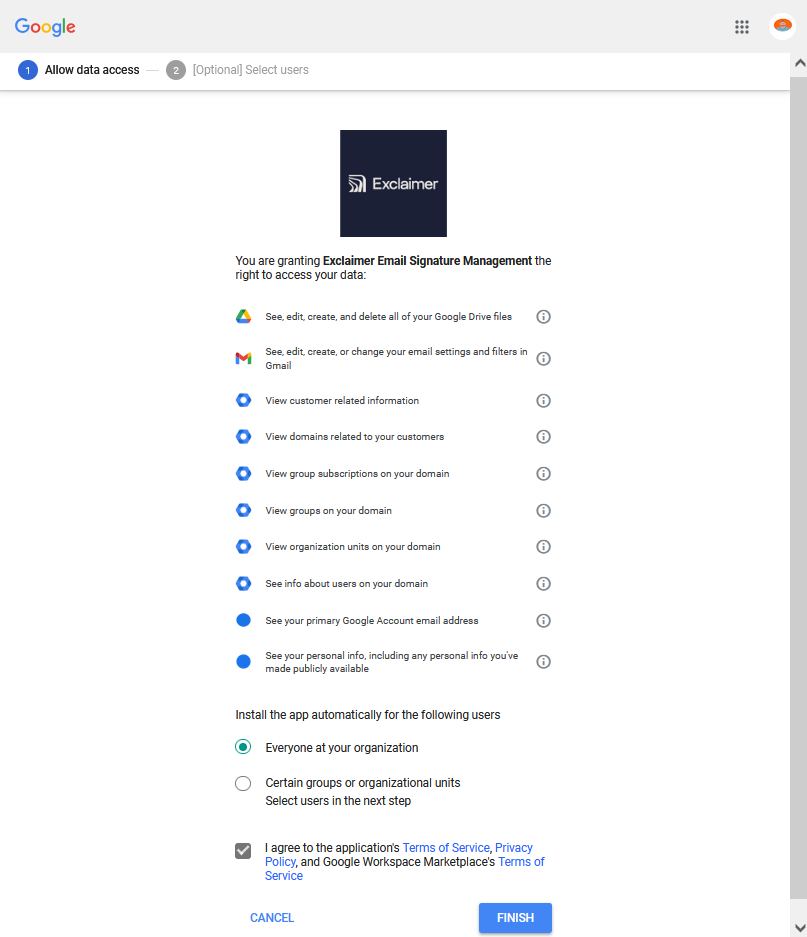
The list of access rights.
-
Under Install the app automatically for the following users, select Everyone at your organization.
WARNING! The Certain groups or organizational units option cannot be used for this installation. Do not select this option. - Select the checkbox to consent to the terms of service and privacy policy.
- Select FINISH. Your installation is now complete.
-
Select DONE to close the Success window. This returns you to the Synchronize User Contact Details section. The Application Successfully Installed message is displayed and synchronization is enabled.
NOTE: If you install the Google App with unlicensed Super Admin credentials, the Exclaimer portal will fail to complete the verification process.