
Scenario
You are using Gmail on a mobile device and you noticed that the sizing on email content and signatures is automatically changing. You would like sizes to stay the same.
Resolution
In Gmail mobile apps, auto-sizing is often applied. You can revert this on a per-email basis on iOS, or disable the setting for all emails on Android.
Select an option below to view the related instructions:
Revert auto-sizing on iOS
On iOS devices, you can revert auto-sizing for individual emails.
To revert auto-sizing on iOS:
- Launch the Gmail app.
- Open an email.
- Tap the vertical ellipsis ⋮ to open the menu.
- Select Revert auto-sizing. The email content and signature is restored to its original size.
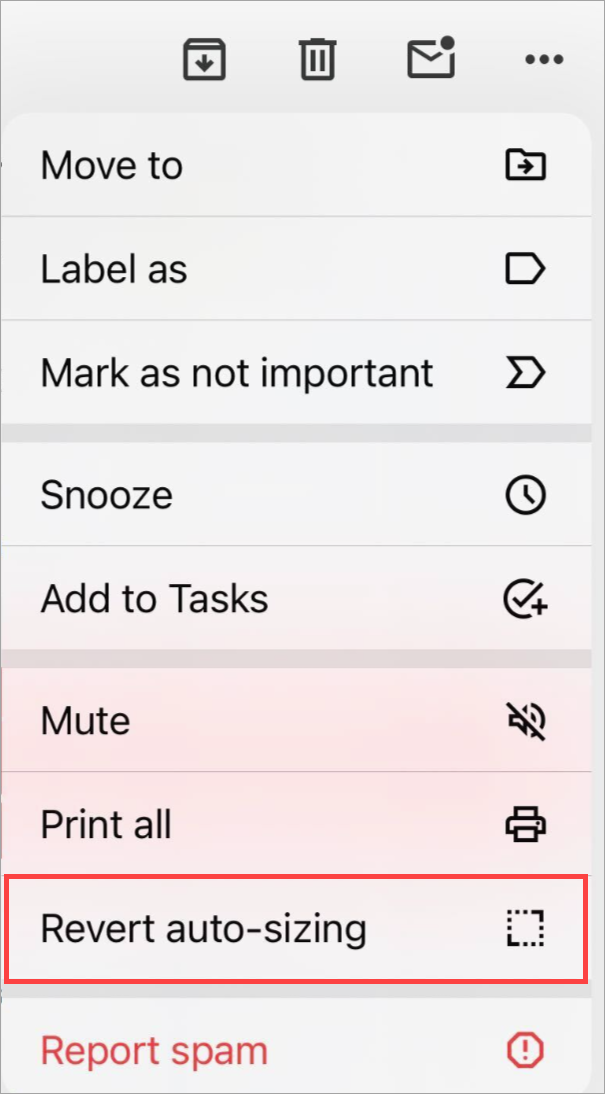
Select Revert auto-sizing.
Revert auto-sizing on Android
On Android devices, you can disable the auto-fit setting to stop automatic sizing on all emails.
To revert auto-sizing on Android:
- Launch the Gmail app.
- Open the menu sidebar by selecting the three-line menu icon. Select Settings, then select General settings.
- De-select the Auto-fit messages checkbox. The content and signatures for all emails are displayed at their original size.
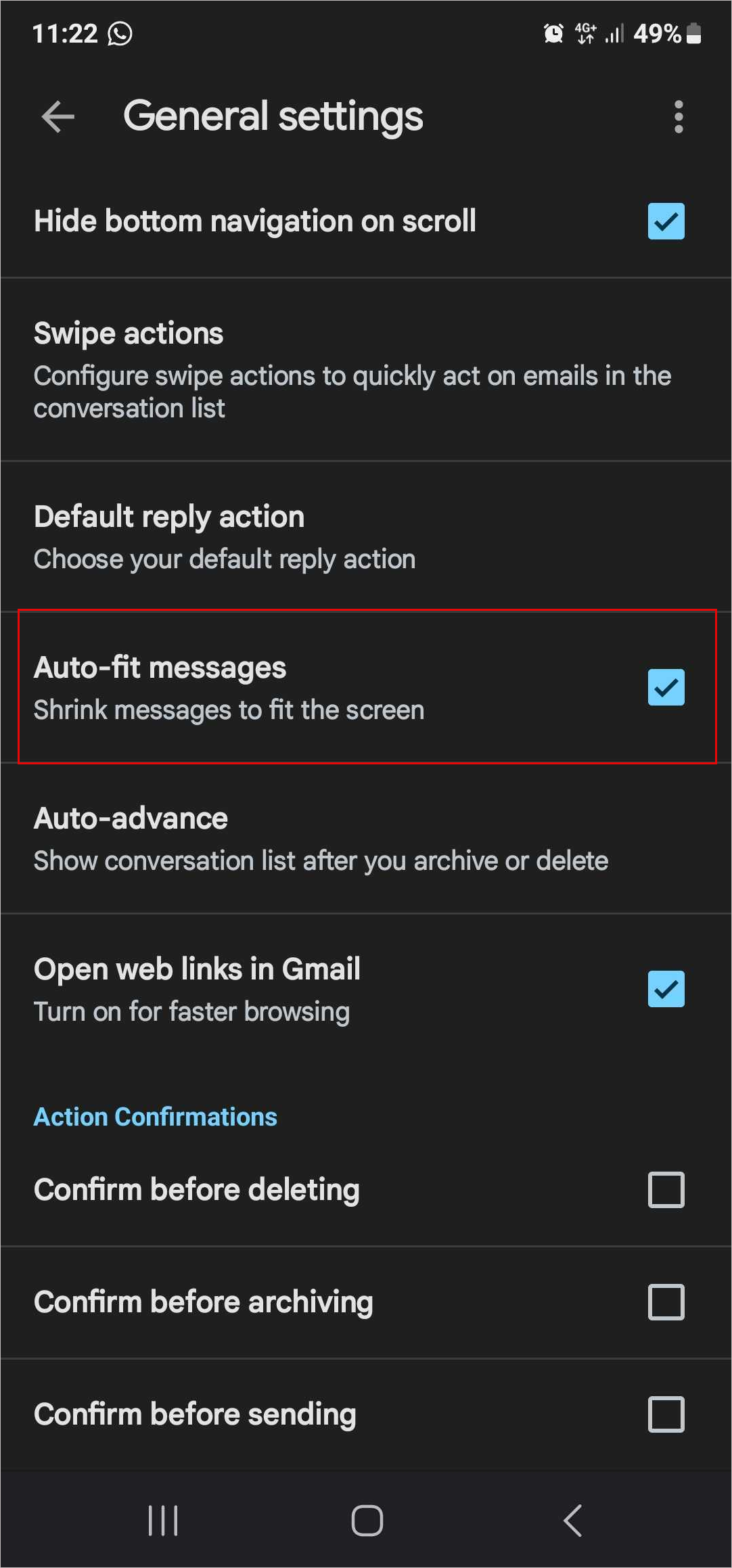
De-select the Auto-fit messages checkbox.